Many people assume the journey ends the moment they buy a gaming PC. In reality, that's just the beginning. Poor planning, component mismatches, or budget miscalculations can lead to real regret and post-purchase experience matters just as much as the purchase decision itself. With the right setup, driver updates, performance monitoring, and awareness of common mistakes, any imperfect experience can be turned into stable, satisfying long-term performance.
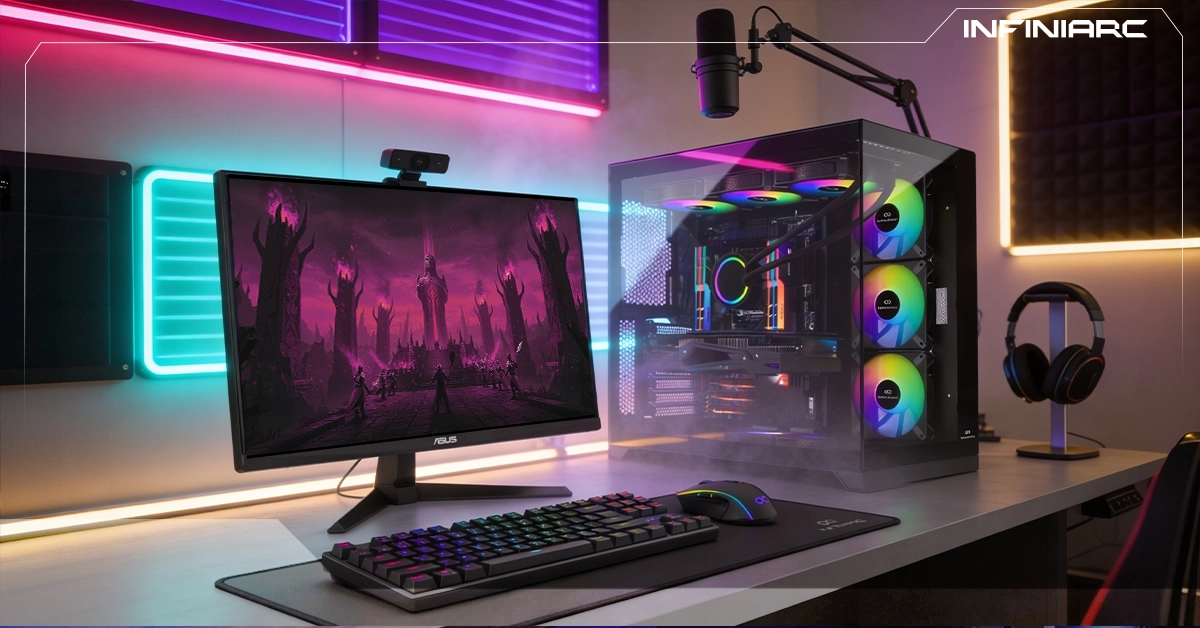
What Is a Gaming PC Build and What Sets It Apart from a Regular Computer?
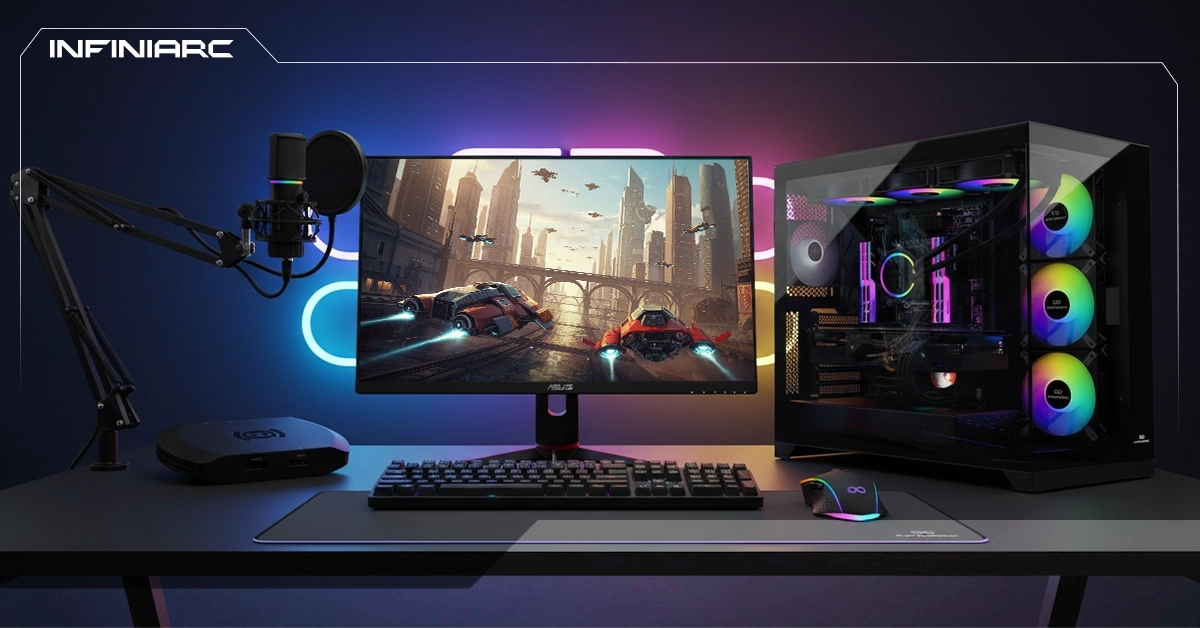
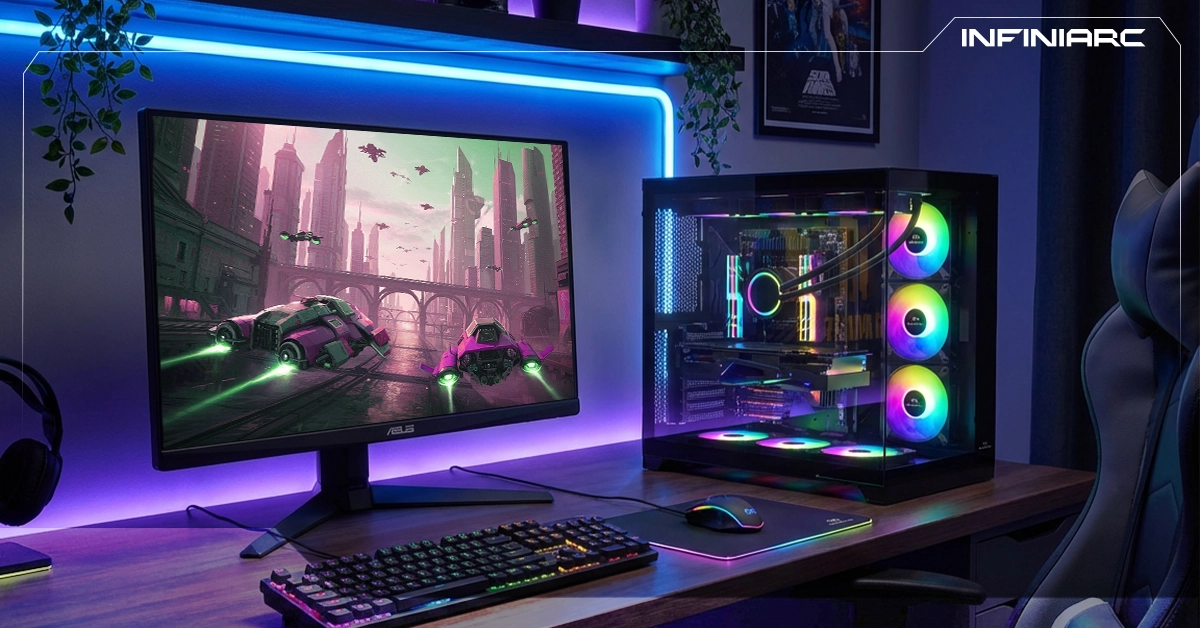
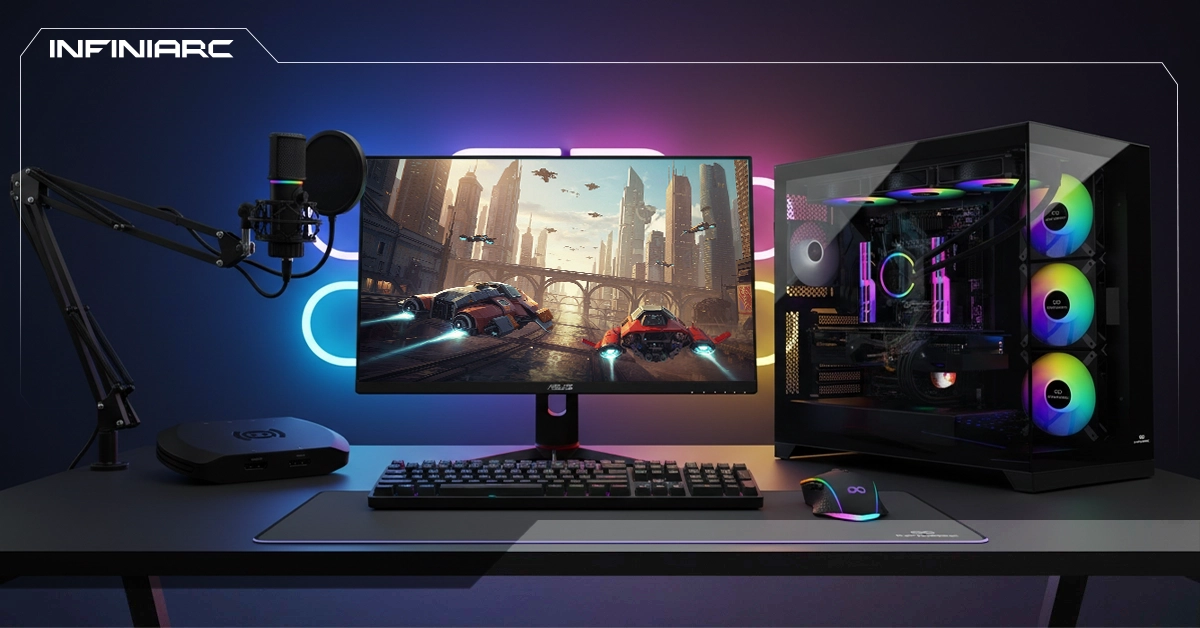
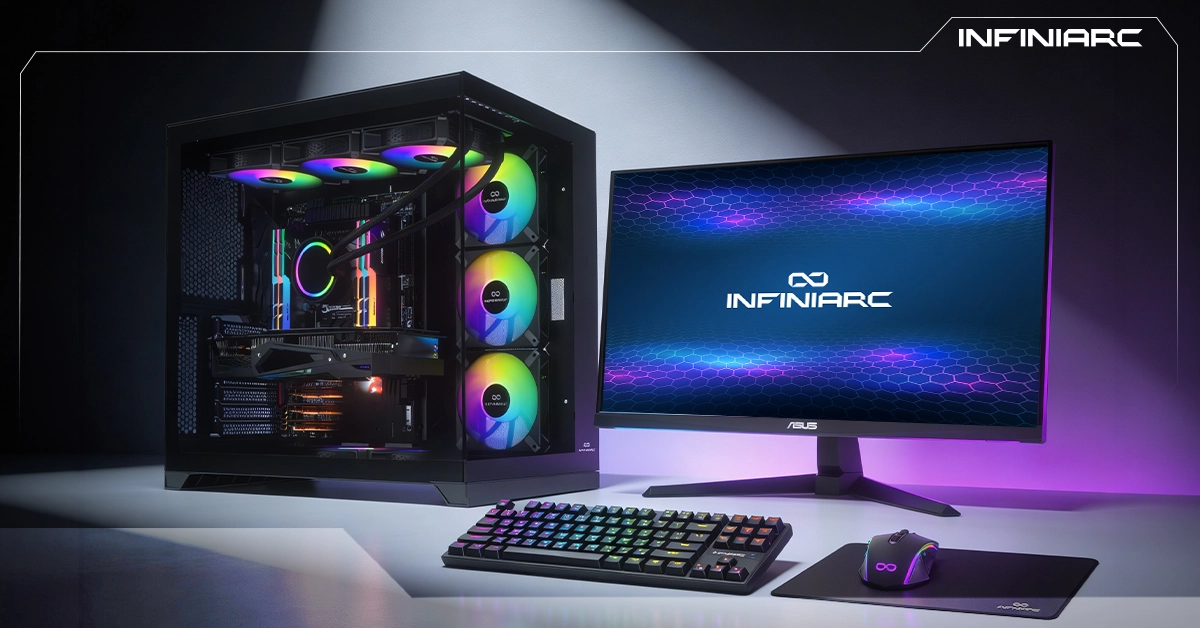
A gaming PC build is a set of components assembled specifically to run video games at high performance. It differs from a standard computer in its focus on graphics power and speed:
- Powerful GPU supporting high-resolution visuals like 4K and high frame rates (120+ FPS) in modern titles versus weak integrated graphics in a regular PC
- Multi-core CPU like AMD Ryzen or Intel Core i7/i9 for fast handling of complex tasks versus basic processors in standard machines
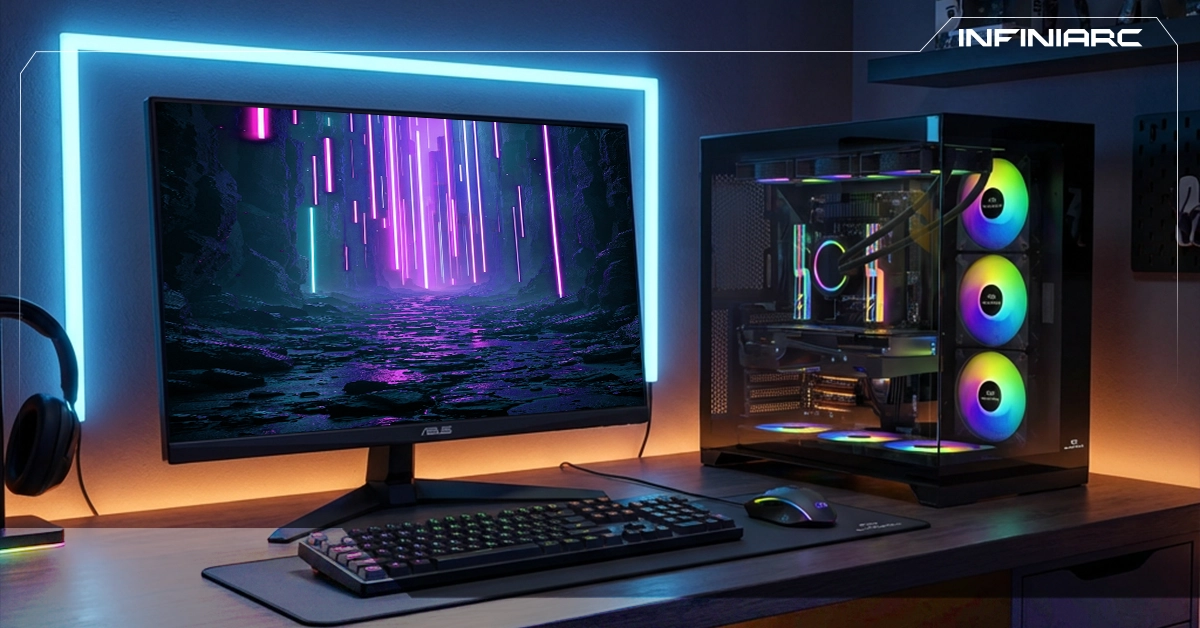
- RGB fans and liquid cooling to maintain low temperatures during long sessions versus simple cooling in regular computers
- Fast RAM and storage 32GB DDR5 and NVMe SSD for instant load times versus slow 8GB RAM in standard builds
- Easy upgradeability swap components freely to keep up with new games versus the limited upgrade path of a regular PC
Key Components to Pay Close Attention to When Buying a Gaming PC
- CPU
A strong processor like the Intel Core i7 or AMD Ryzen 7 handles multitasking and gaming smoothly without bottlenecking.
- GPU
A capable card like an RTX 40-series or RX 7000 with Ray Tracing and DLSS support. Verify VRAM size (8GB or more) based on your target resolution — 1080p, 1440p, or 4K.
- RAM
No less than 16–32GB DDR5 for speed and multitasking without stuttering. Ensure compatibility with your motherboard and target frequency (3600MHz or higher).
- Motherboard
Must support your CPU type, RAM, and PCIe 5.0 slots for future upgrades. Stick to trusted brands like ASUS or MSI with strong VRM delivery.
- Storage, Power, and Cooling
A 1TB+ NVMe SSD for fast game and system load times, a 650–850W 80+ Gold PSU with a safe power margin, and effective cooling for sustained performance.
How to Choose the Right CPU for Your Gaming PC Build
Choosing the right CPU depends on your budget and performance needs:
- Define your budget first beginners: Ryzen 5 or Core i5 (6–8 cores); mid-range: Ryzen 7 or i7; professional: Ryzen 9 or i9
- Gaming-only focus choose AMD for 3D V-Cache (like the 7800X3D); multi-use Intel for productivity workloads
- Go with the latest generation 2026: Ryzen 9000 or Intel 15th Gen with high clock speeds (4.5GHz+) and sufficient core counts (8+)
- Benchmark before buying compare performance on sites like UserBenchmark or Cinebench for gaming and productivity tasks
- Verify motherboard compatibility AM5 socket for AMD, LGA1700+ for Intel, with DDR5 RAM support
- Best value focus avoid overspending on the CPU if the GPU is your primary performance driver
Why the GPU Is the Most Important Component — and How to Choose the Right One
The GPU controls graphics quality and frame rates in every game and it's the single most impactful component in any gaming build:
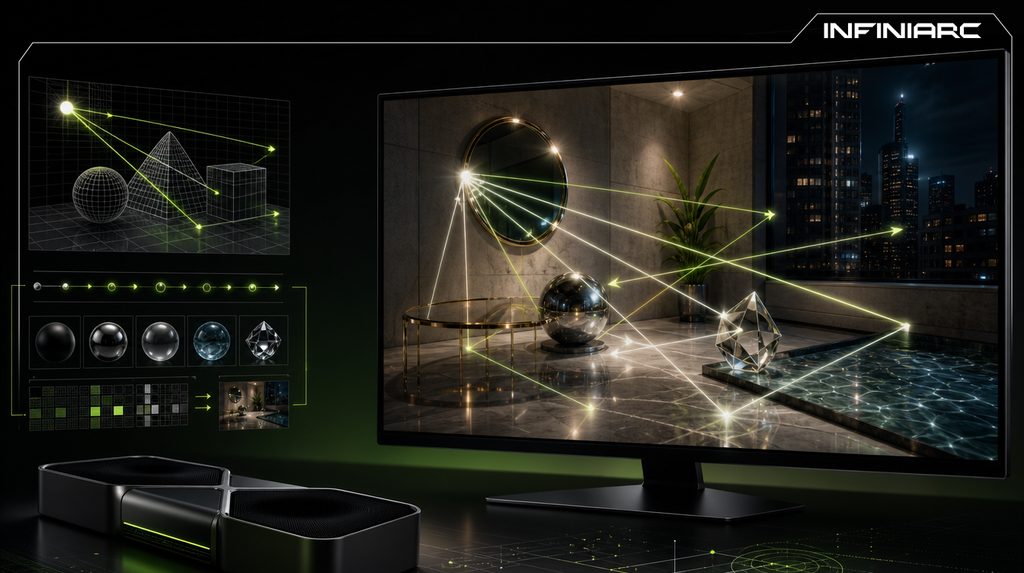
- Handles complex graphics like Ray Tracing and realistic shadows determining both FPS and resolution (1080p to 4K)
- Accounts for 70–90% of gaming performance compared to the CPU, especially in modern titles
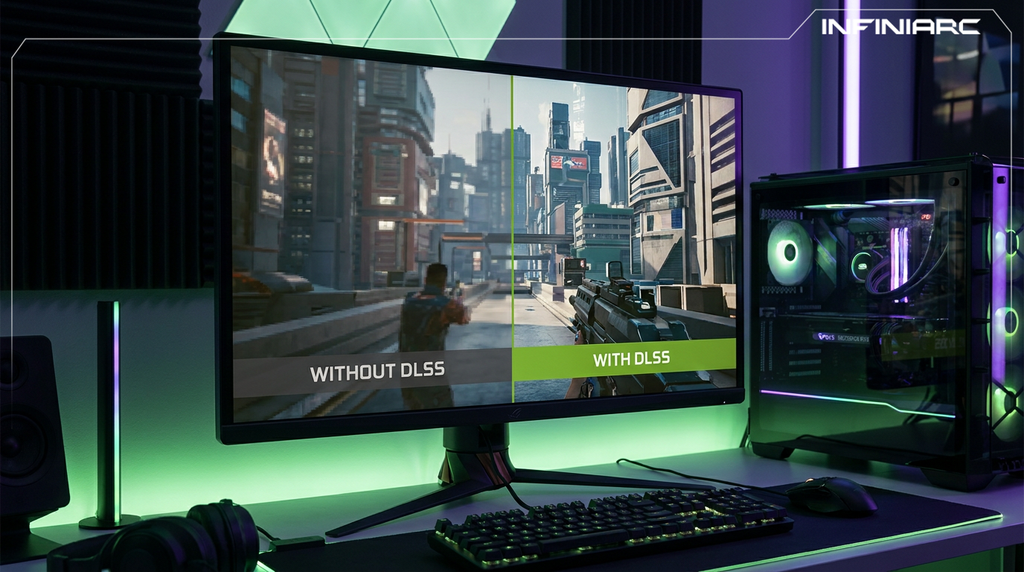
- Supports technologies like DLSS (NVIDIA) or FSR (AMD) to boost frame rates without sacrificing visual quality
How to choose:
- 1080p/60FPS → RTX 3060; 1440p/144FPS → RTX 4070; 4K → RTX 4080+ or RX 7900
- Focus on VRAM (8GB+) for modern games and high GPU clock speeds for fast rendering
- NVIDIA leads in Ray Tracing; AMD offers better price-to-performance use TechPowerUp or YouTube reviews to compare
- Verify case size compatibility, PSU wattage (750W+), and don't over-invest in the GPU if your CPU can't keep up
7 Essential Tips After Buying Your Gaming PC
1. Clean regularly
Remove dust from fans and heatsinks every 3–6 months using compressed air to prevent heat buildup and performance loss.
2. Monitor temperatures
Use tools like HWMonitor or MSI Afterburner to track CPU/GPU temps (keep below 85°C) and set fan curves automatically.
3. Update GPU drivers monthly
Download the latest drivers directly from NVIDIA or AMD to support new game releases and maintain stability.
4. Run stress tests quarterly
Use Cinebench or FurMark every 3 months to detect stability issues before they become real problems.
5. Optimize Windows settings
Set your power plan to High Performance and avoid overclocking unless your cooling solution is up to the task.
6. Manage your cables
Keep cables organized inside the case to ensure proper airflow and prevent thermal choking check connections regularly.
7. Protect your data and warranty
Keep your warranty receipts, maintain a clean SSD, and use antivirus software to preserve system speed and protect your investment.
How to Verify Full Component Compatibility Before Buying
- Use PCPartPicker's System Builder to check all parts CPU, motherboard, RAM, GPU and watch for red compatibility warnings
- Confirm CPU socket match (AM5 for Ryzen 9000, LGA1700 for Intel 14th Gen)
- Verify RAM type compatibility (DDR5), slot count, and maximum supported speed (e.g. 6000MHz)
- Check GPU length against your case dimensions and PSU wattage requirements (750W+ for RTX 40-series)
- Always cross-reference with manufacturer specs and official compatibility lists (QVL for RAM) on Intel, AMD, and ASUS websites
Common Mistakes to Avoid After Buying a Gaming PC
- Skipping cleaning dust buildup raises temperatures and cuts performance; clean every 3 months
- Ignoring driver updates outdated drivers cause stuttering in games; update GPU drivers regularly
- Running without temperature monitoring temps above 90°C trigger throttling; use HWMonitor at all times
- Messy cable management poor airflow from tangled cables causes thermal choking; organize them properly
- Using HDD instead of SSD slow load times kill the experience; switch to an NVMe SSD
- No backup plan data loss is a real risk; use OneDrive or an external HDD for regular backups
Where to Buy a Reliable Gaming PC at the Best Price
INFINIARC® is one of the best destinations for ready-to-run gaming PC builds offering a wide range of pre-configured setups across different performance levels and price points, with easy component customization for modern gaming needs. Buying from INFINIARC® guarantees a professionally assembled rig built for a powerful gaming experience, backed by a smooth and reliable shopping process.
Final Word
Buying a gaming PC is just the beginning. Mistakes and regrets can happen but the right updates, settings adjustments, and maintenance habits turn any build into a long-lasting, high-performance machine. INFINIARC® is here to support you every step of the way, from purchase to peak performance.