Improving gaming performance on PC through FPS optimization is one of the most important factors gamers look for in achieving a smooth, stutter-free experience. Frames Per Second (FPS) is the primary indicator of display smoothness and game responsiveness. The higher the FPS, the more fluid the motion and the sharper the detail giving the player more precise control and faster reaction times, especially in competitive games that demand high speed and accuracy.
What Is FPS and Why Is It the Most Important Factor in Gaming Performance?
FPS Frames Per Second is a fundamental measure of motion smoothness in games, determined by the GPU, CPU, and memory. It refers to the number of consecutive images a system produces per second to make video appear as smooth as real motion.
For example, at 60 FPS the game displays 60 complete frames every second, making movement feel natural compared to 30 FPS which can appear choppy. Common benchmarks include 30 FPS (playable but not ideal), 60 FPS (the standard for most modern games), and higher rates like 120 or 144 FPS for competitive gaming.
FPS is the most critical performance factor for several reasons:
- It determines smoothness and responsiveness especially in fast-paced games like shooters or racing titles where it reduces input lag and improves tracking accuracy
- Low FPS (below 30) causes freezing or a feeling of sluggishness, affecting focus and competitive performance while high FPS delivers a measurable advantage in Esports
- FPS depends on screen resolution, graphics complexity, and monitor refresh rate (Hz) and can drop in visually busy scenes like explosions or open environments
How Does Low FPS Affect the Gaming Experience and Image Quality?
Impact on the Gaming Experience
Low FPS (below 30–60) creates a choppy, slide-show-like feeling instead of smooth motion increasing input lag and making it difficult to track targets in shooters or execute quick maneuvers.
It can reduce success rates by up to 90% in competitive games like PUBG or Fortnite. In competitive play, low FPS hands opponents a clear advantage the mouse feels less responsive, movements feel jerky, and precision and focus suffer even on 60Hz displays.
Impact on Image Quality
The image appears stuttery or frozen especially in fast-moving scenes with visual artifacts like screen tearing or motion blur becoming visible. At 20–30 FPS, the image loses its dynamic clarity.
Motion looks unnatural compared to 60 FPS or higher, even at high resolution. This effect worsens in graphically demanding games where FPS drops in busy areas, making the visual experience genuinely uncomfortable.
The Most Common Causes of FPS Drops on PC During Gaming
- Thermal throttling — high GPU or CPU temperatures force the system to reduce clock speeds to protect components, causing sudden FPS drops during long sessions
- Insufficient GPU — a graphics card that cannot meet a game's demands at high resolution or advanced settings will show significant frame drops in complex scenes
- Insufficient RAM — when RAM falls below 16GB or runs in single-channel mode, the system falls back on slow virtual memory, causing stuttering and FPS drops in open-world games
- Background applications — programs like Chrome, Windows updates, and antivirus software consume CPU and RAM in the background, reducing game resources and causing sudden FPS drops; closing them through Task Manager restores stability immediately
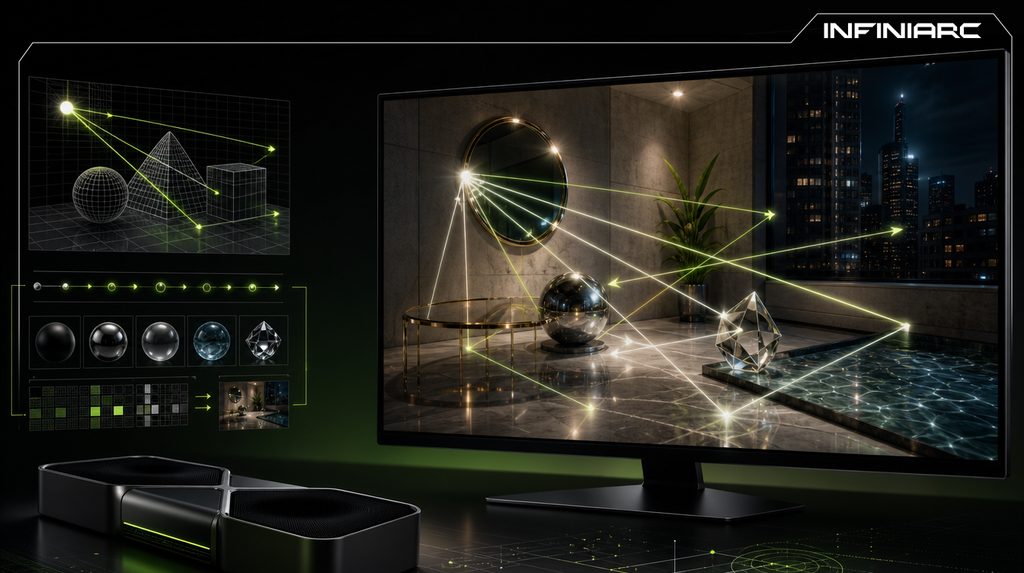
- Extreme graphics settings — running Anti-Aliasing or Ray Tracing at maximum levels beyond the system's capability — especially at 4K — can push FPS below 30 in busy areas
- PSU instability — a weak or unstable power supply fails to deliver sufficient power to the GPU under peak load, causing FPS fluctuations and drops
How to Improve Gaming Performance on PC and Boost FPS
- Update GPU Drivers
Download the latest graphics card drivers from NVIDIA or AMD via GeForce Experience or Radeon Software. Restart after installation this alone can improve performance by 10–20% in most games.
- Lower Graphics Settings
Open in-game settings and set resolution to 1080p. Disable Ray Tracing or high Shadow quality and enable V-Sync if needed. This can double FPS on mid-range hardware with minimal visual quality loss.
- Close Background Programs
Press Ctrl+Shift+Esc to open Task Manager and end Chrome or Discord if they're consuming high CPU or RAM. Enable Game Mode in Windows (Settings → Gaming → Game Mode) to prioritize game resources automatically.
- Adjust Power Plan
Search for "Power Options," select "High Performance," or create a custom plan with CPU and GPU at 100%. This prevents automatic power saving and maintains stable FPS throughout long sessions.
- Clean and Cool Your System
Use CCleaner to remove temporary files and clean dust from fans using compressed air. Monitor temperatures via HWMonitor — if temps exceed 80°C, add additional cooling to prevent thermal throttling.
- Use Optimization Tools
Enable the NVIDIA App or MSI Afterburner for light GPU overclocking, or use Razer Cortex as a Game Booster to automatically close background processes and increase FPS by 15–30%.
- Monitor and Test FPS
Use MSI Afterburner or FRAPS to display FPS during gameplay. Compare results before and after changes if performance doesn't improve, consider upgrading your RAM or GPU for modern titles.
How the CPU and GPU Affect FPS
- The Role of the CPU
The CPU handles core game calculations AI, physics, and input processing. A weak CPU creates a bottleneck that reduces FPS, especially in open-world or multiplayer games.
- An older processor like an i5-4xxx will limit a powerful GPU in crowded scenes, dropping FPS below 60 despite strong graphics capability. Modern multi-core processors like the Ryzen 7 improve stability but single-core clock speed matters most in the majority of games.
- The Role of the GPU
The GPU is responsible for rendering frames and visual effects like lighting and shadows — it is the primary FPS driver at high resolutions (1440p and above). A weak GPU like the GTX 1650 causes FPS drops in AAA titles like Cyberpunk even with a strong CPU, because it cannot process pixels fast enough.
How High-Refresh-Rate Gaming Monitors Improve the FPS Experience
High-refresh-rate gaming monitors (144Hz or 240Hz) do not increase the FPS your PC produces but they display those frames more smoothly, significantly improving the overall experience:
- The monitor determines how many frames can be displayed per second. A 144Hz display shows up to 144 frames if the GPU produces 200 FPS, the excess causes screen tearing. Enabling G-Sync or FreeSync synchronizes the two to eliminate tearing and ensure smooth output
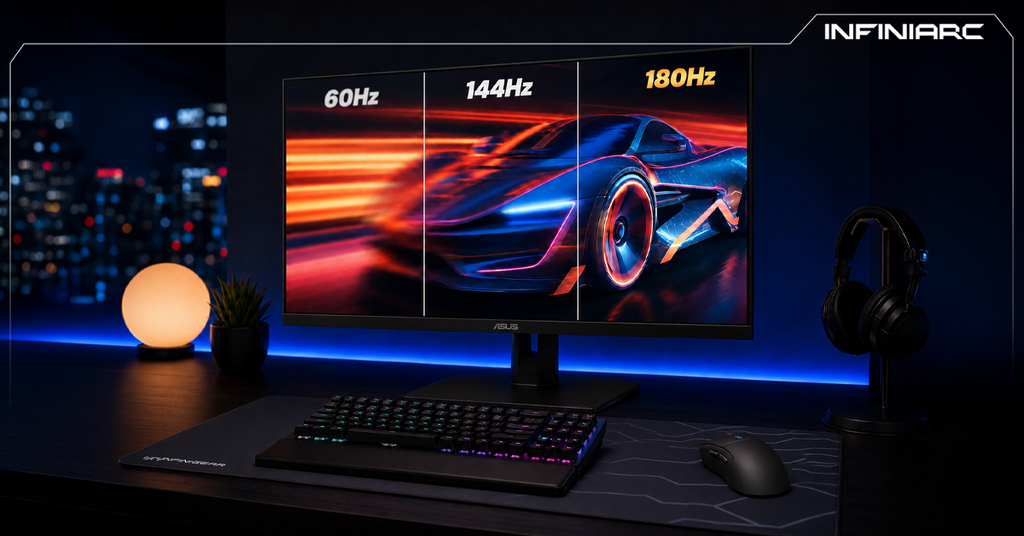
- 60Hz monitors limit the benefit of high FPS, while 144Hz+ makes motion noticeably clearer in games like Valorant or CS:GO
- High refresh rates (144–240Hz) deliver faster input response reducing input lag by 20–50 milliseconds and improving aiming accuracy and fast movement
- Higher refresh rates reduce stutter and make motion feel more realistic compared to 60Hz giving professional Esports players a measurable competitive edge
FPS vs. Refresh Rate Why You Need a 144Hz or 240Hz Monitor
- What Is FPS?
FPS is the number of consecutive frames the GPU renders per second, based on CPU and GPU performance and in-game settings. For example, 60 FPS means 60 complete frames per second — making motion feel smooth but it fluctuates based on scene complexity.
- What Is Refresh Rate?
Refresh rate, measured in Hz, is how many times per second the monitor redraws the image on screen. 144Hz means 144 refreshes per second it depends on the monitor's capability, not the hardware, and determines the final visual smoothness.
- The Key Difference
FPS is produced by the GPU and determines image detail and resolution. Hz determines how those frames are displayed. If FPS is 200 on a 60Hz monitor, only 60 frames are shown with potential tearing — making synchronization through technologies like G-Sync essential.
- Why You Need 144Hz or 240Hz
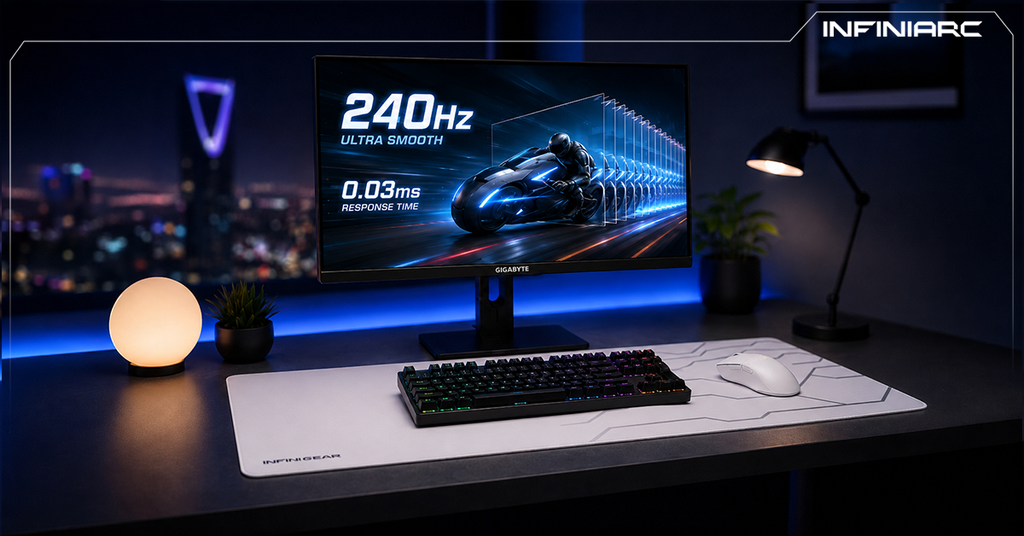
144Hz monitors display frames more smoothly than 60Hz, reducing input lag by up to 50% and improving accuracy in fast-paced FPS titles. 240Hz is ideal for professional Esports players who need ultra-fast response times (under 5ms) particularly when paired with a GPU producing 144+ FPS.
Ways to Increase FPS Without Upgrading PC Components
- Update GPU drivers from NVIDIA GeForce Experience or AMD Software — this can improve performance by 10–25% through bug fixes and optimization patches
- Lower resolution to 1080p, disable Ray Tracing or high Anti-Aliasing, and set shadows to medium — this can raise FPS from 30 to 60+ in AAA games with minimal perceptible quality loss
- Switch to High Performance power plan — search "Power Options," select High Performance or create a custom plan at 100% for CPU and GPU to prevent automatic throttling and maintain stable FPS
- Close background programs using Task Manager (Ctrl+Shift+Esc) — end Chrome, Discord, or antivirus processes during gameplay, or enable Game Mode in Windows Settings → Gaming for full resource priority
- Clean the system and free up RAM — delete temporary files via Disk Cleanup and disable startup programs through Task Manager. This frees up to 4GB of RAM for improved FPS in open-world games
- Use built-in NVIDIA or AMD tools — enable Game Optimization in the NVIDIA App or Radeon Software, or apply a safe light overclock for additional performance headroom