


NVIDIA vs AMD Radeon
Jul 23, 2026
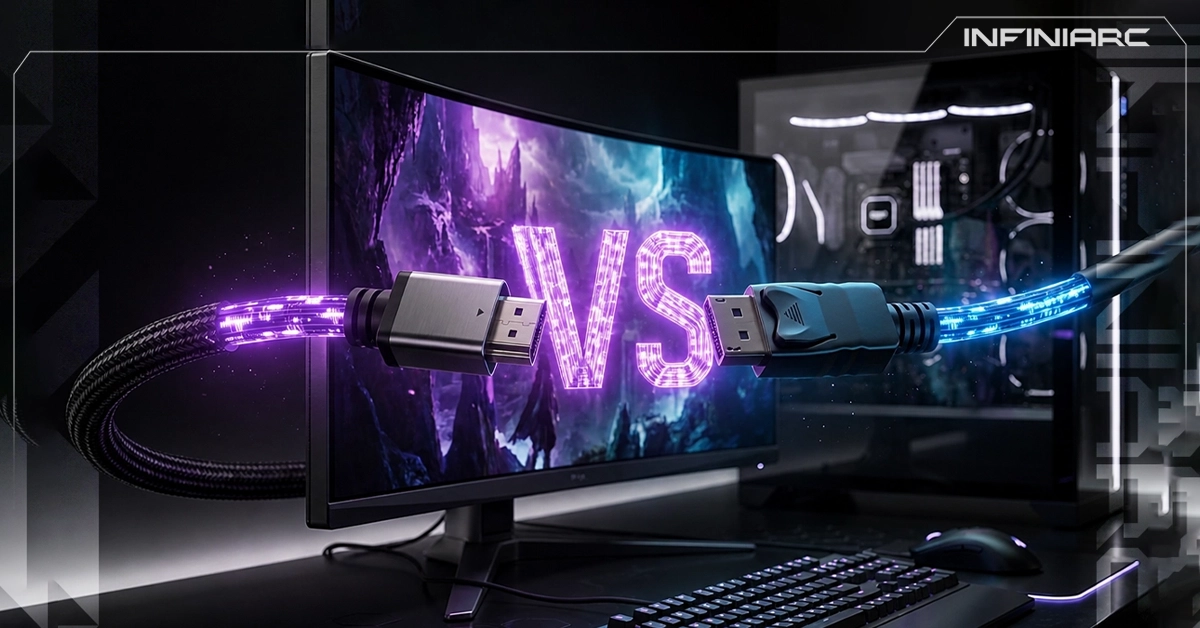
Choosing the right display port is one of the most overlooked details in a gaming setup, despite its direct impact on performance. Many capable monitors quietly run below their real potential simply because the cable or port in use does not support the required bandwidth. Although both interfaces carry video and audio over a single cable and look broadly similar at first glance, the difference between them can be the gap between a monitor running at 240Hz and one silently capped at 60Hz without the user ever noticing, which makes understanding this difference an essential step for any gamer who wants full value from their build.
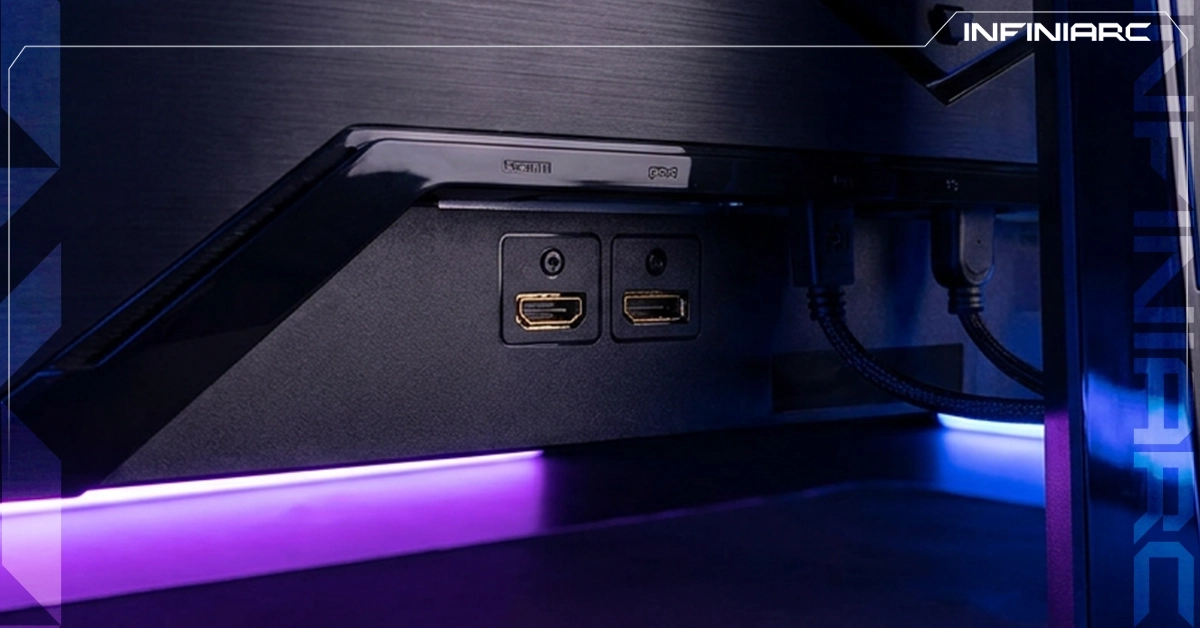
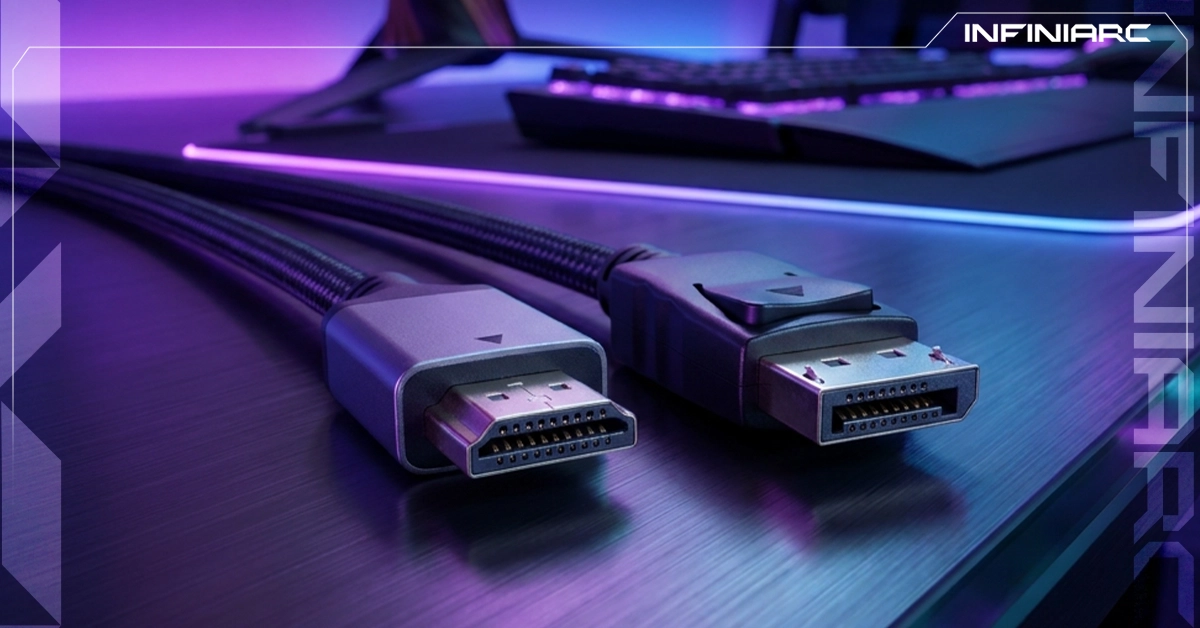
The fundamental difference comes down to who developed each standard and the purpose it was designed for, as HDMI was built for home entertainment devices while DisplayPort was built for computers and high performance monitors. Here is the breakdown:
HDMI arrived in 2003 as a collaboration between major consumer electronics manufacturers, intended to replace analogue video standards in living room hardware. It was designed for stability and the broadest possible device compatibility, which is why it now appears on essentially every TV, projector, console and streaming box.
DisplayPort was developed by VESA in 2006 to replace ageing VGA and DVI connectors in the computer world. It is royalty free, meaning manufacturers pay no licensing fees to use it, and it relies on packet based transmission rather than a continuous signal, which gives it more flexibility in using available bandwidth and sending more than one video stream over a single cable.
The gap is not purely technical but a matter of design intent. HDMI serves the living room, the television and the console, while DisplayPort serves the desk, the gaming monitor and the professional workstation. This explains why each one dominates its own territory without making the other obsolete.
Specification | HDMI | DisplayPort |
Developed by | HDMI Forum | VESA |
Latest version | HDMI 2.2 | DisplayPort 2.1b |
Maximum bandwidth | 96 Gbps | 80 Gbps |
Previous generation | HDMI 2.1 at 48 Gbps | DisplayPort 2.1 at 80 Gbps |
Connector pins | 19 | 20 |
Locking mechanism | No | Yes |
Daisy chaining monitors | No | Yes via MST |
Audio Return Channel | Yes via ARC and eARC | No |
Dominant on | TVs and consoles | Gaming monitors and pro displays |
Licensing | Royalty bearing | Royalty free |
The answer to this question changed dramatically in recent months, and many articles still repeat outdated information. Here is the actual picture:
DisplayPort held the bandwidth crown for years. DisplayPort 2.1 delivers around 80 Gbps while HDMI 2.1 stopped at 48 Gbps, a gap approaching double in DisplayPort's favour, and the direct reason it became standard on competitive high refresh gaming monitors.
Version 2.2 was released in June 2025, raising bandwidth to 96 Gbps using next generation Fixed Rate Link technology, with support for resolutions up to 12K at 120Hz and 16K at 60Hz, alongside uncompressed full chroma formats including 8K at 60Hz and 4K at 240Hz in 10 bit and 12 bit colour.
None of that performance happens over just any cable. The new Ultra96 cable is the only one supporting the full 96 Gbps and all HDMI 2.2 applications, while the existing Ultra High Speed cable remains capped at 48 Gbps. The Ultra96 name is used to identify products supporting 64, 80 or 96 Gbps under the 2.2 specification.
DisplayPort did not stand still either. In January 2025 the DP80LL low loss cables arrived, enabling four lane UHBR20 support at 80 Gbps over an active cable up to three metres long, delivering three times the cable length compared with the previously certified passive DP80 cables.
HDMI 2.2 wins the raw number on paper, but DisplayPort 2.1b solved a far more realistic problem, which is length. A cable that holds full bandwidth across three metres matters more than a headline figure your monitor cannot reach in the first place.
This is where the real everyday difference appears, since most users never approach the bandwidth ceiling of either modern standard. Here are the standout capabilities:
The headline DisplayPort exclusive, allowing several monitors to run from a single output through daisy chaining. Connect the first monitor to the graphics card, then run a cable from the first to the second and another from the second to the third, and all three run off one output. This feature alone is reason enough to choose DisplayPort in multi monitor environments.
DisplayPort cables include a locking mechanism that prevents accidental disconnection, which is critical in rack mounted KVM systems and live broadcast environments where a pulled cable could kill the feed. HDMI relies on friction alone with no additional retention.
DisplayPort is now widely available through USB-C ports via DP Alt Mode, and Thunderbolt 4 supports it natively, effectively turning a USB-C port into a full DisplayPort output. This is a significant advantage for thin gaming laptops and mini PCs with limited dedicated ports.
The decisive HDMI exclusive. It is the only interface carrying Enhanced Audio Return Channel, meaning a single HDMI cable between a TV and a soundbar can carry uncompressed Dolby Atmos and DTS:X without any separate optical or coaxial run.
The latest HDMI revision added the Latency Indication Protocol, which improves audio and video sync across multi device setups by letting devices share latency information and adjust automatically. It benefits soundbar and AV receiver owners as well as gamers in fast paced competitive titles.
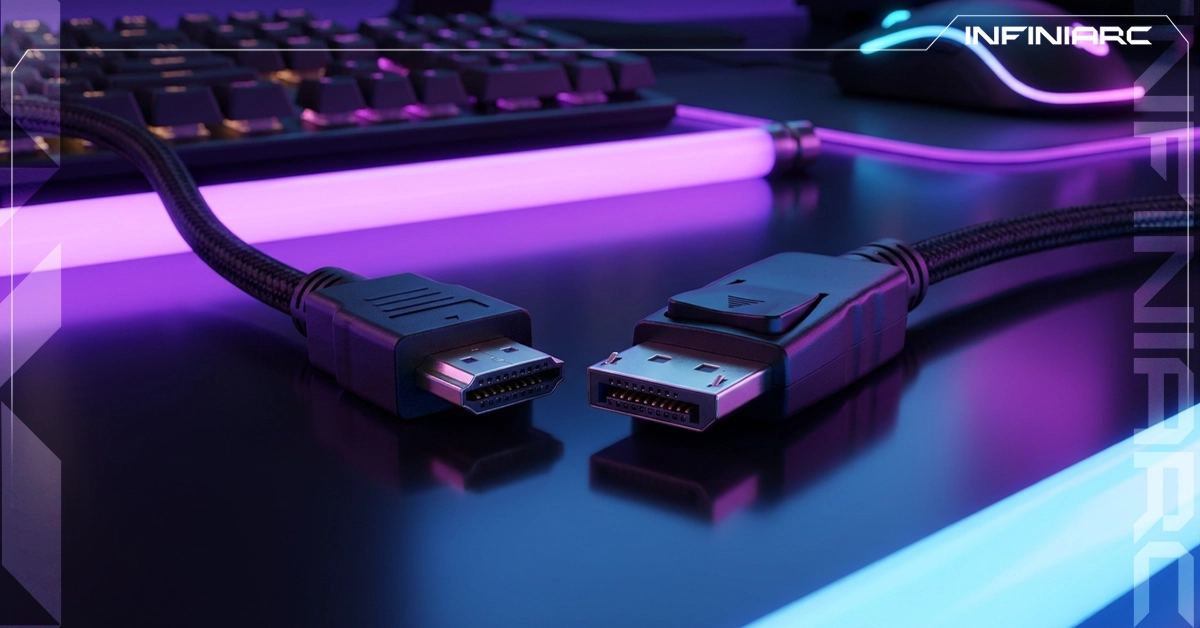
The correct choice depends on the type of display, the device in use and the nature of the workload. Here are the clearest cases:
Choose DisplayPort. It is the better option for PCs, high refresh monitors and professional setups because it is faster, more flexible and better suited to multi monitor use. In high refresh gaming such as 4K at 144Hz and above or 1440p at 240Hz the gap becomes tangible, since these panels exceed the older HDMI ceiling.
Choose HDMI. It is correct whenever the destination is a television, projector or AV receiver. Most TVs ship with HDMI, version 2.0 or 2.1 is essential for proper 4K viewing, and versions from 2.0a onward support HDR for improved colour depth and contrast.
Choose HDMI. There is no alternative, since PlayStation and Xbox systems do not include a DisplayPort output at all.
Choose USB-C with DP Alt Mode. It is the most practical route to full DisplayPort performance without a dedicated port, particularly on thin machines with limited connectivity.
Choose DisplayPort exclusively, since MST has no HDMI equivalent and no comparable alternative exists on that standard.
INFINIARC offers a wide range of gaming monitors supporting the latest HDMI and DisplayPort revisions, ensuring your build delivers everything it is capable of:
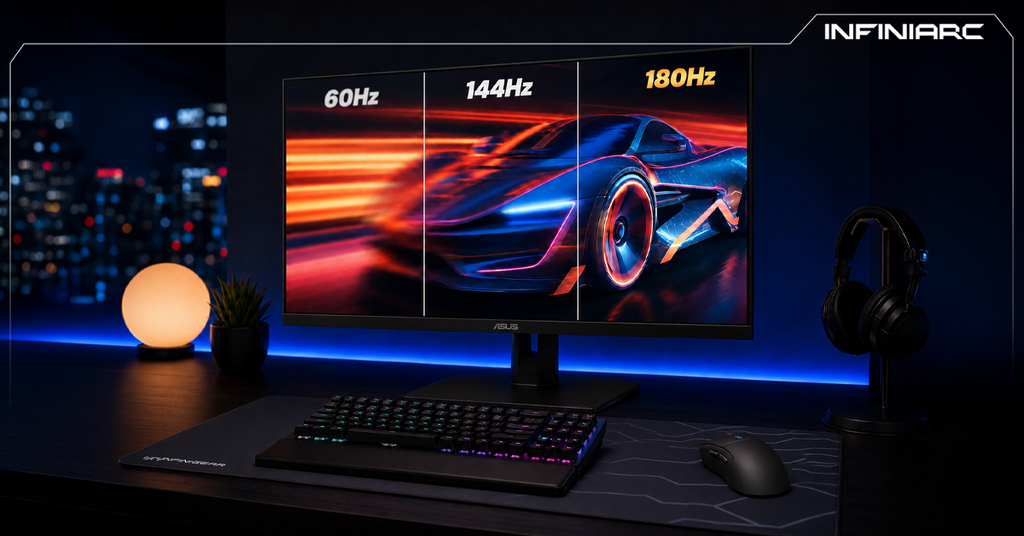
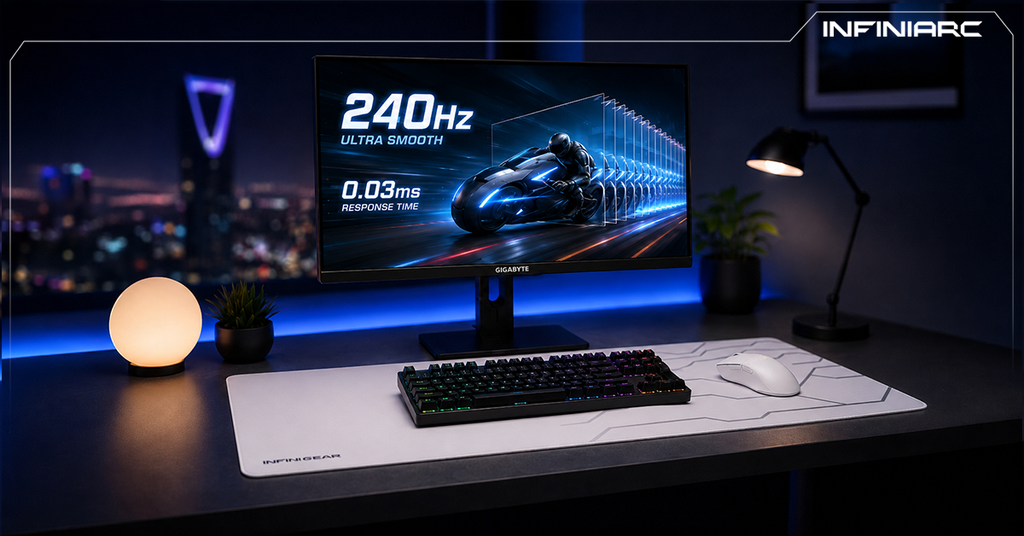
A selection built for competitive players with elevated refresh rates that rely on DisplayPort to extract maximum output from the graphics card. They suit fast paced titles like Valorant and Warzone, where every additional frame translates into a real advantage in responsiveness.
An ideal choice for anyone seeking the highest image quality with HDR support and high refresh rates. These panels require a certified cable and a capable graphics card such as a current generation RTX card to run at full capability without stuttering.
Ready configurations combining a powerful graphics card, a balanced processor, DDR5 memory and effective cooling, engineered to run modern titles at maximum settings with current display outputs supporting the highest resolutions and refresh rates available today.
Several recurring mistakes cost users part of their performance without them realising the cause. The most common include:
Port, cable and device together determine real performance, and the result is always the weakest link in the chain. Even with HDMI 2.2, full capability requires a cable explicitly labelled Ultra96, since manufacturers are permitted to claim 2.2 compliance without strict enforcement of the bandwidth rule.
Not every HDMI port on a single television is equal. Many sets reserve full bandwidth for one or two ports while the rest operate at lower specifications, making the wrong port a direct cause of lost performance.
High bandwidth signals are sensitive to distance, which is precisely why DP80LL active cables exist. For genuinely long runs an active optical cable remains the correct answer rather than a standard passive cable that loses part of the signal.
A cable officially certified by the standards body matters far more than its price, its metal housing or its braided jacket. Official certification is the only guarantee that the advertised bandwidth is actually delivered.
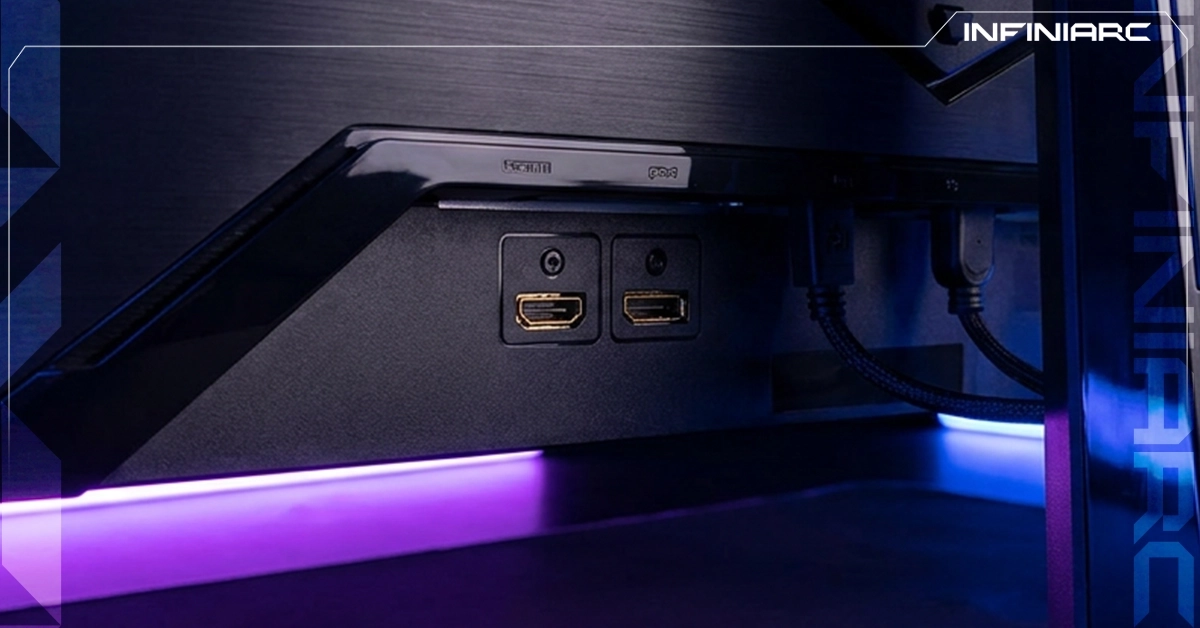
Before connecting your monitor or buying a new cable, follow these key guidelines to get the most from your build:
Verify the port version on both your graphics card and your monitor before buying any cable, since the final result is determined by the weakest component in the chain.
Always use DisplayPort when connecting a gaming monitor to a PC, and reserve HDMI for televisions and consoles.
Look for official certification on the cable such as Ultra96 for HDMI or DP80 and DP80LL for DisplayPort, and avoid uncertified alternatives.
Choose the shortest cable that fits your distance, because every added metre increases the risk of signal loss at high frequencies.
Enable the full refresh rate in your system settings after connecting, since many monitors default to a rate below their actual capability.
Use a USB-C port with DP Alt Mode on thin laptops to obtain DisplayPort performance without a dedicated connector.
Buy from trusted retailers like INFINIARC for genuine cables and monitors backed by proper warranty, and avoid counterfeit products that never meet their advertised specifications.
Learn about