


Gaming Monitor Refresh Rate Explained: 60Hz vs 144Hz
Jul 27, 2026
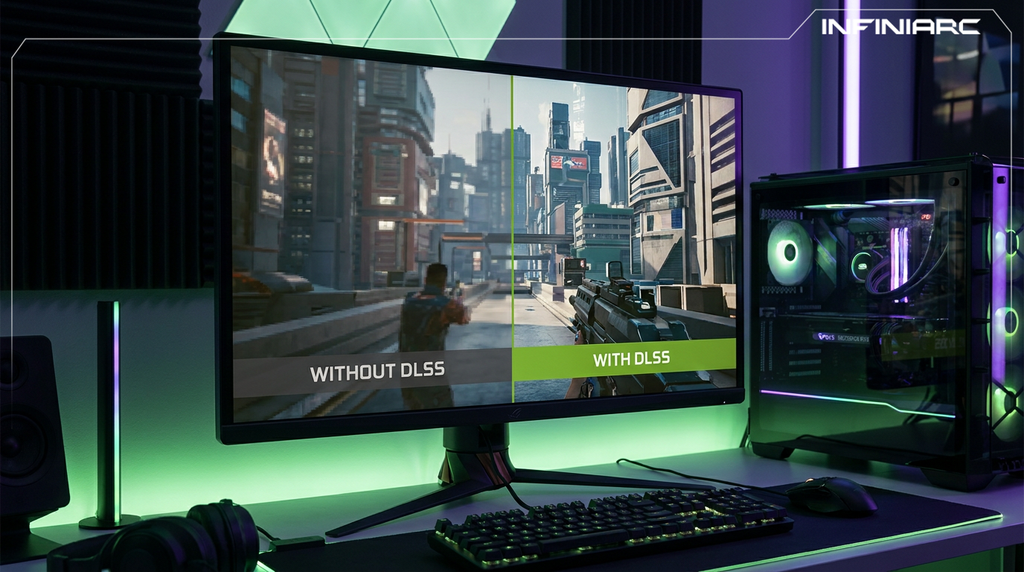
DLSS is one of the most significant developments in PC gaming performance in recent years, shifting the equation away from relying purely on the raw power of a graphics card and toward using artificial intelligence to generate and enhance the image. Instead of forcing the system to process every pixel conventionally, this technology renders the game at a lower internal resolution and then reconstructs it at high quality through a trained AI model, delivering a substantial increase in frame rate without a noticeable loss in image quality, and in many cases with a visible improvement in it. That combination has made DLSS an essential component of any modern gaming build rather than an optional extra.
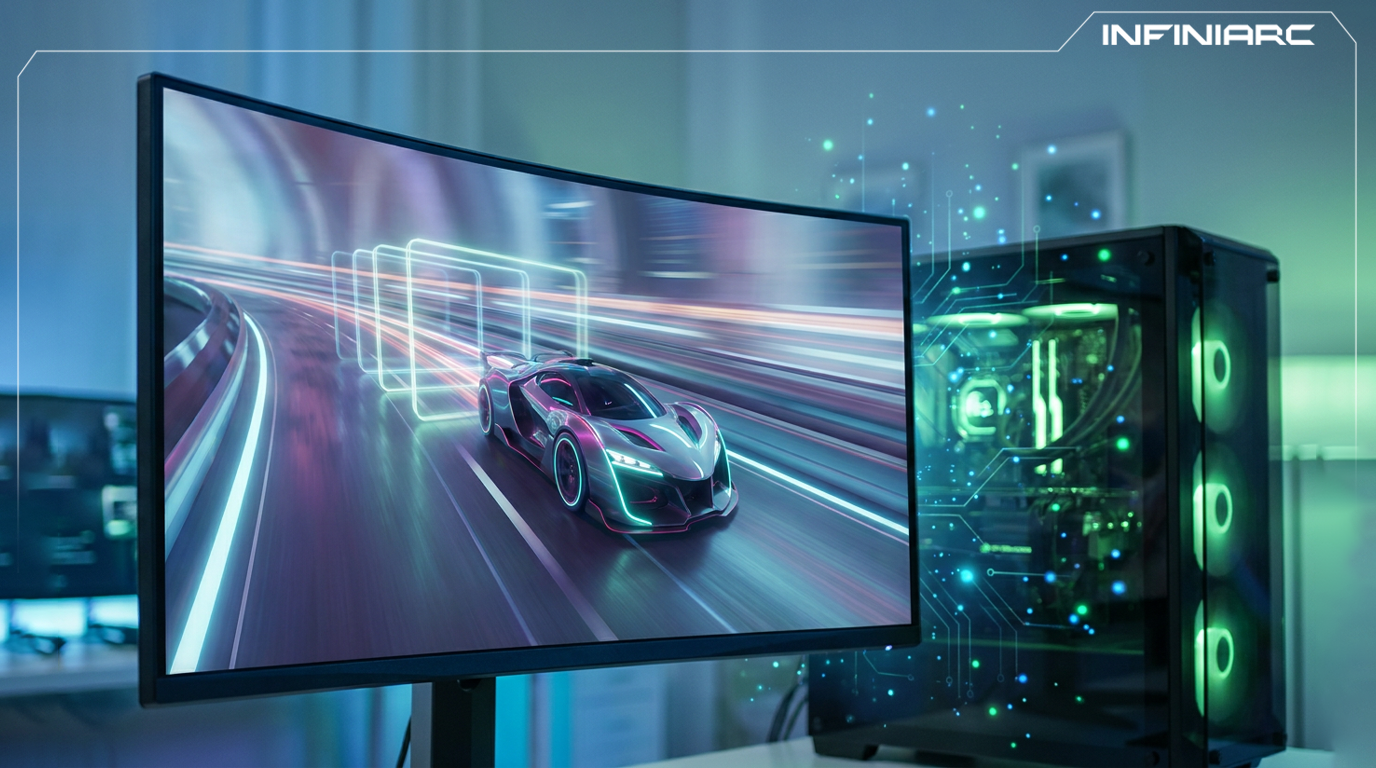
DLSS stands for Deep Learning Super Sampling, an NVIDIA technology that uses artificial intelligence to upscale images and generate additional frames through dedicated cores inside RTX graphics cards. Here is what defines it:
The game renders internally at a resolution lower than your display, and an AI model then reconstructs the image at full resolution using motion data and pixel samples supplied by the game engine. The load on the graphics card drops dramatically while the final image remains sharp and detailed.
The technology runs on the Tensor cores built into RTX cards specifically for AI workloads. These are separate units from the traditional graphics cores, which means the AI processing happens in parallel without drawing resources away from core rendering performance.
Older approaches to lowering resolution meant a visibly softer and less detailed image. DLSS instead relies on a model trained on millions of high quality reference images, producing a result close to native resolution and sometimes better than it in edge definition and fine detail.
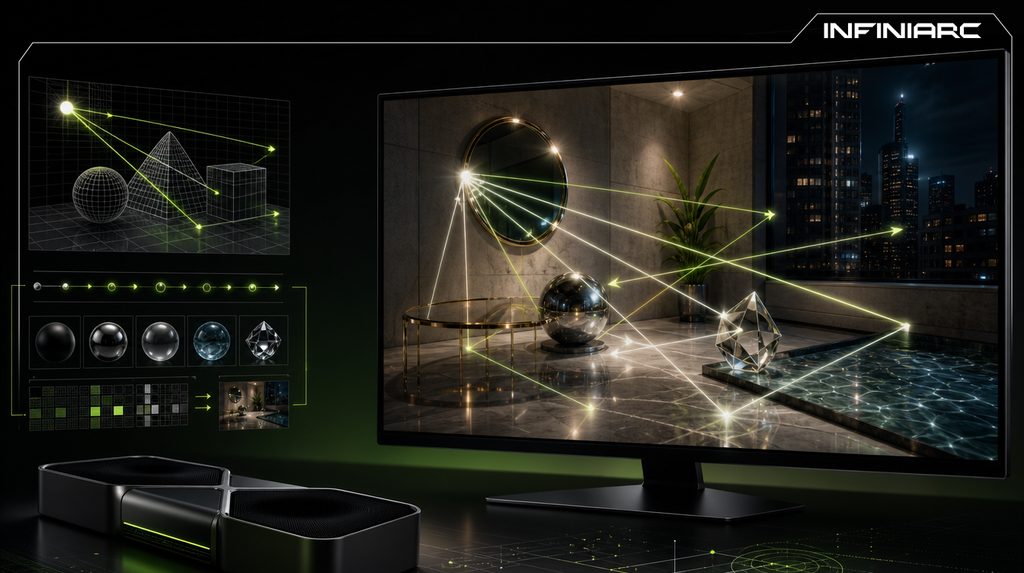
With demanding techniques like Ray Tracing and Path Tracing now widespread, running modern games at maximum settings without DLSS has become difficult even on the strongest cards. This makes the technology a practical requirement for enjoying advanced graphics at a comfortable frame rate.
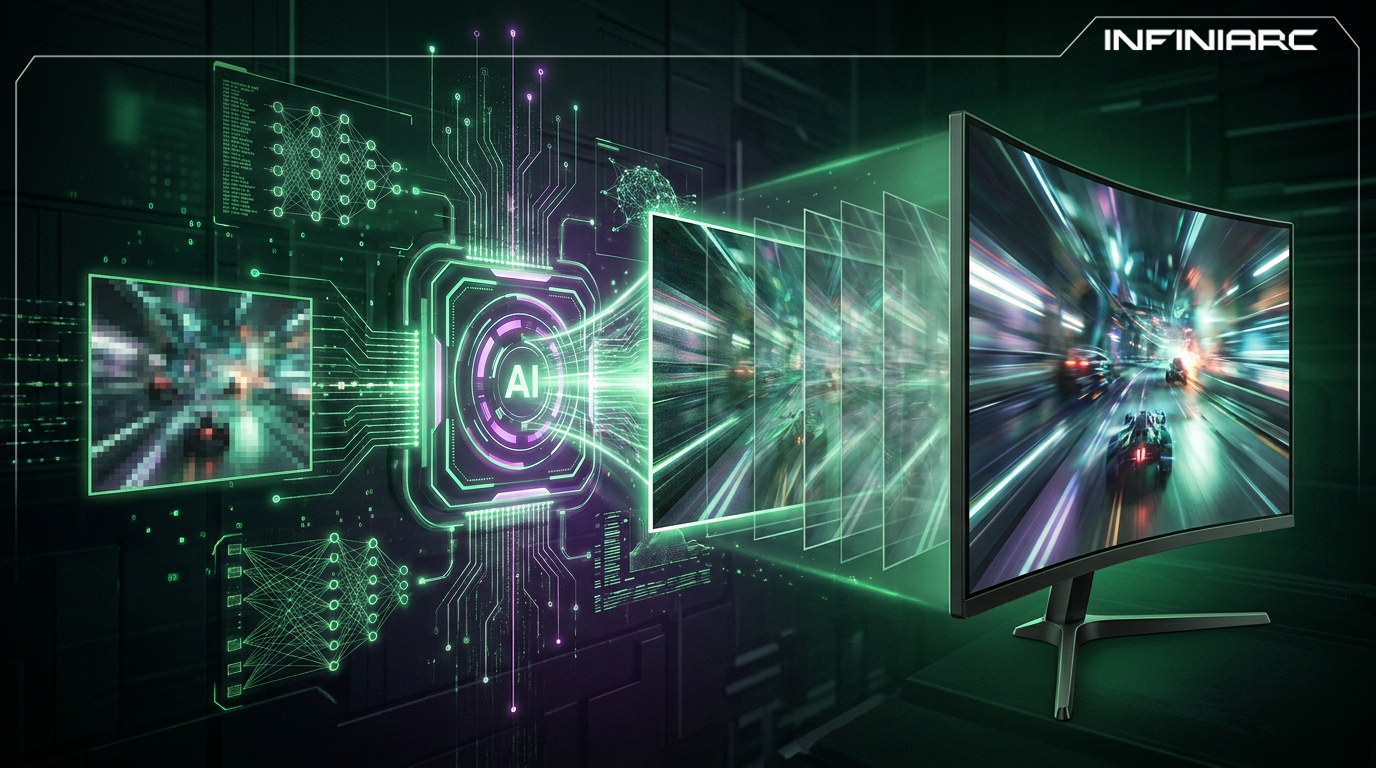
The technology operates through a series of integrated stages inside the graphics card before the image ever reaches your screen. Here is the sequence:
The game begins by rendering the scene at an internal resolution below your display resolution. Rather than processing a full 4K image, the card may process a 1080p or 1440p image depending on the selected mode, and this is where the bulk of the performance gain originates.
The model receives additional data from the game engine including motion vectors, scene depth and pixel samples. This data is what separates DLSS from any ordinary upscaling method, because it gives the model an understanding of what is happening in the scene rather than just a static image.
The AI model reconstructs the image at full resolution, drawing on both previous and current frames to recover missing detail while cleaning up edges and reducing shimmer on moving objects.
Recent versions add a stage that generates entire frames between conventionally rendered ones. This is the stage responsible for the largest frame rate multiplication, and it operates exclusively on specific generations of RTX cards.
The technology has evolved across several generations, each one expanding what is possible. Here are the key milestones:
The generation that established the concept in practical form in 2020, using convolutional neural networks to upscale while preserving detail. It remains available across all RTX cards regardless of generation.
This generation introduced Frame Generation, producing one additional frame between every two conventionally rendered frames and effectively doubling the frame rate. The feature was limited to the 40 Series and newer cards.
This represents the largest upgrade to the AI models since DLSS 2 launched, with Super Resolution, Ray Reconstruction and DLAA now powered by the graphics industry's first real time application of transformer architecture, the same architecture behind major frontier AI models. The result is improved temporal stability, noticeably less ghosting and higher detail in motion.
DLSS 4 added the ability to generate three additional frames per traditionally rendered frame instead of one. In a Cyberpunk 2077 scene on an RTX 5090, this multiplied performance by more than eight times compared with conventional brute force rendering, while halving PC latency and further enhancing image quality.
Announced at CES 2026, this release introduces a second generation transformer model for Super Resolution that uses five times the compute power of the original transformer model and was trained on a significantly expanded, high fidelity dataset. It also brings Dynamic Multi Frame Generation and a 6X mode capable of generating up to five additional frames per rendered frame, enabling path traced gaming beyond 240 FPS on 50 Series cards.
The technology offers several modes that differ in the ratio between internal render resolution and display resolution, each striking a different balance between quality and performance:
Uses the highest internal resolution of any mode, producing the closest result to native rendering with a moderate performance gain. It is the right choice for anyone prioritising image quality over raw frame rate.
Sits at the midpoint between quality and performance, suiting most players who want a tangible increase in frames without an obvious quality compromise, particularly in single player titles.
Lowers the internal resolution further for a substantial performance gain. In recent versions this mode has reached a point where it rivals and can even beat native image quality in testing, making it a genuinely practical option at 4K.
The most aggressive reduction in internal resolution. It was previously reserved for extreme cases only, but with the second generation model it has evolved into a genuinely viable mode for 4K gaming.
Works in the opposite direction, spending the available compute on improving image quality at native resolution rather than raising performance. It suits players with headroom to spare who want the best possible visuals.
INFINIARC offers a range of builds and graphics cards supporting the latest DLSS versions so you can take full advantage of what the technology delivers:
The highest performing option for using Multi Frame Generation to its full potential, suited to players targeting 4K with Path Tracing and elevated frame rates, paired with powerful processors and advanced liquid cooling to maintain stable performance through long sessions.
A balanced option combining strong performance with a lower price than the flagship tier, supporting the full set of modern DLSS features including multi frame generation, and well suited to players targeting 1440p and 4K at high settings.
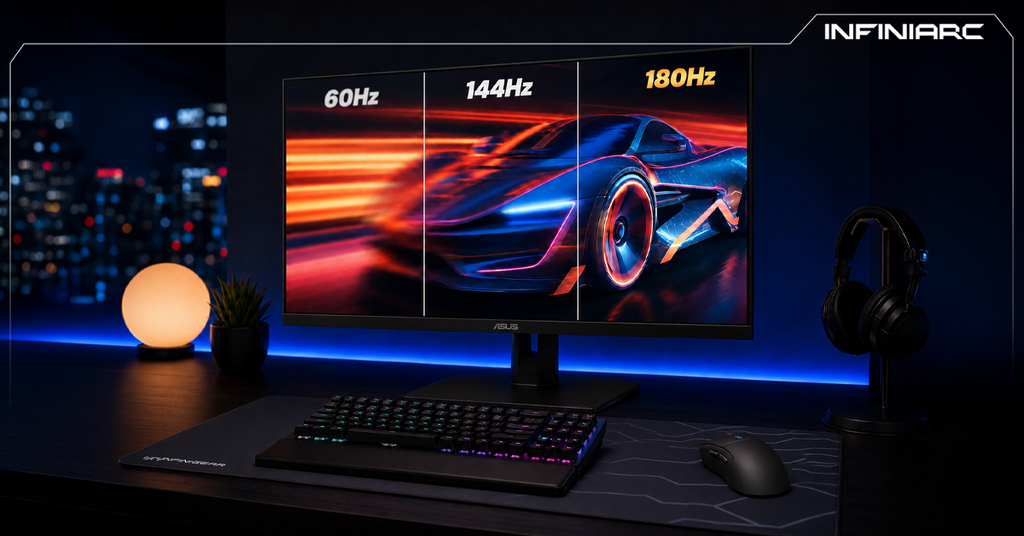
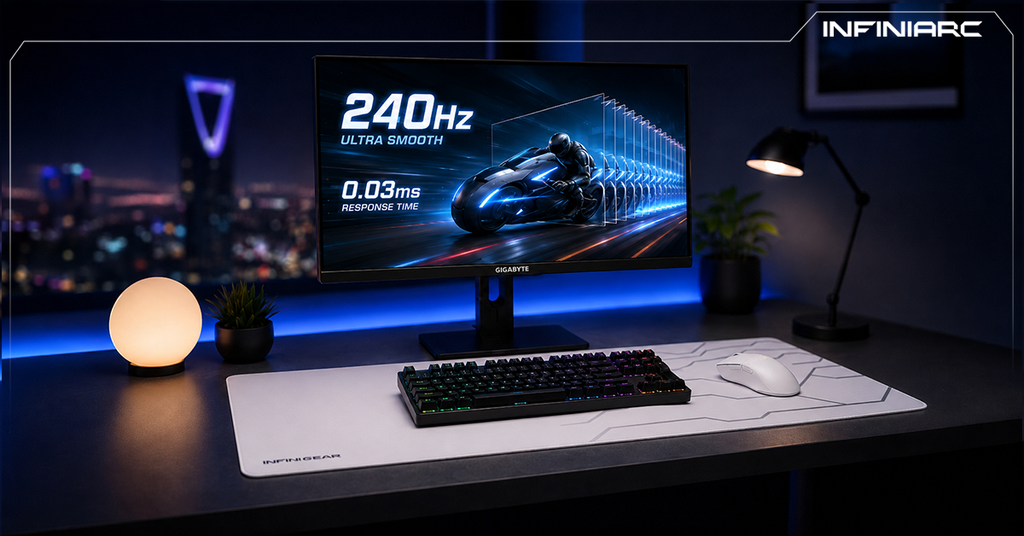
Getting real value from DLSS requires a display capable of showing the elevated frame rate, which is why INFINIARC stocks a range of high refresh gaming monitors with modern display outputs that turn generated frames into smoothness you can actually feel while playing.
Several recurring mistakes prevent players from getting full value from the technology, or produce worse results than expected:
Frame generation works best when the underlying frame rate is already reasonable. Enabling it while a game runs at a very low base rate may produce a high number on screen while the actual input response feels uncomfortable.
New models and improvements arrive through drivers and the NVIDIA app. Running an outdated version means staying on a less capable model while free upgrades offering better quality and performance sit unused.
Selecting Ultra Performance on a 1080p display produces a worse result than Quality mode would, because the internal resolution becomes too low. The maths changes entirely at 4K, where aggressive modes remain highly usable.
DLSS raises performance considerably but does not eliminate the need for a balanced system. A weak processor or insufficient memory will still create a bottleneck whose effects show through even with the technology enabled at its highest settings.
Follow these practical guidelines to reach the best balance between quality and performance when enabling the technology: